Creating Perks
Perks are employee benefits you create and assign through PerksPe. Each perk has a value in PEP Coins — a digital currency employees can redeem via their RuPay card at 12 million+ merchants across India.
A perk is any benefit you want to give employees. Each perk is assigned a PEP Coin value, which employees can spend like real money.
Food Allowance
Monthly meals and dining
Fuel Allowance
Petrol and transit reimbursement
Medical Benefits
Health-related expenses
Rewards & Recognition
Performance and spot bonuses
Food and Fuel perks can only be used for their specific purposes. For example, a Food card can only be used at food-related merchants, and a Fuel perks can only be used at fuel stations. Transactions at non-matching merchants will be automatically declined. For a complete list of permitted merchant categories, see MCC Codes.
How to Create a Perk
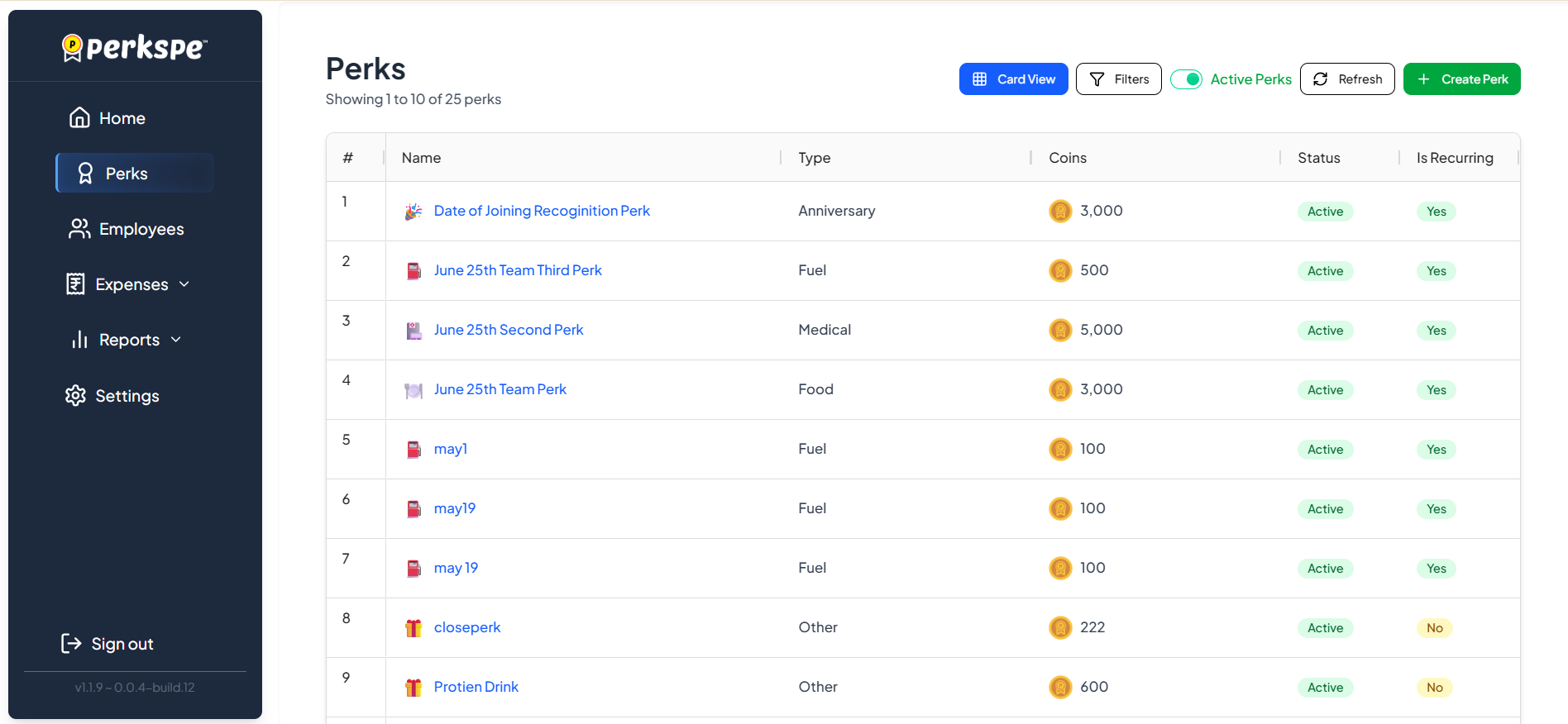
Step 3: Enter Basic Information
Fill in the core details for your new perk:
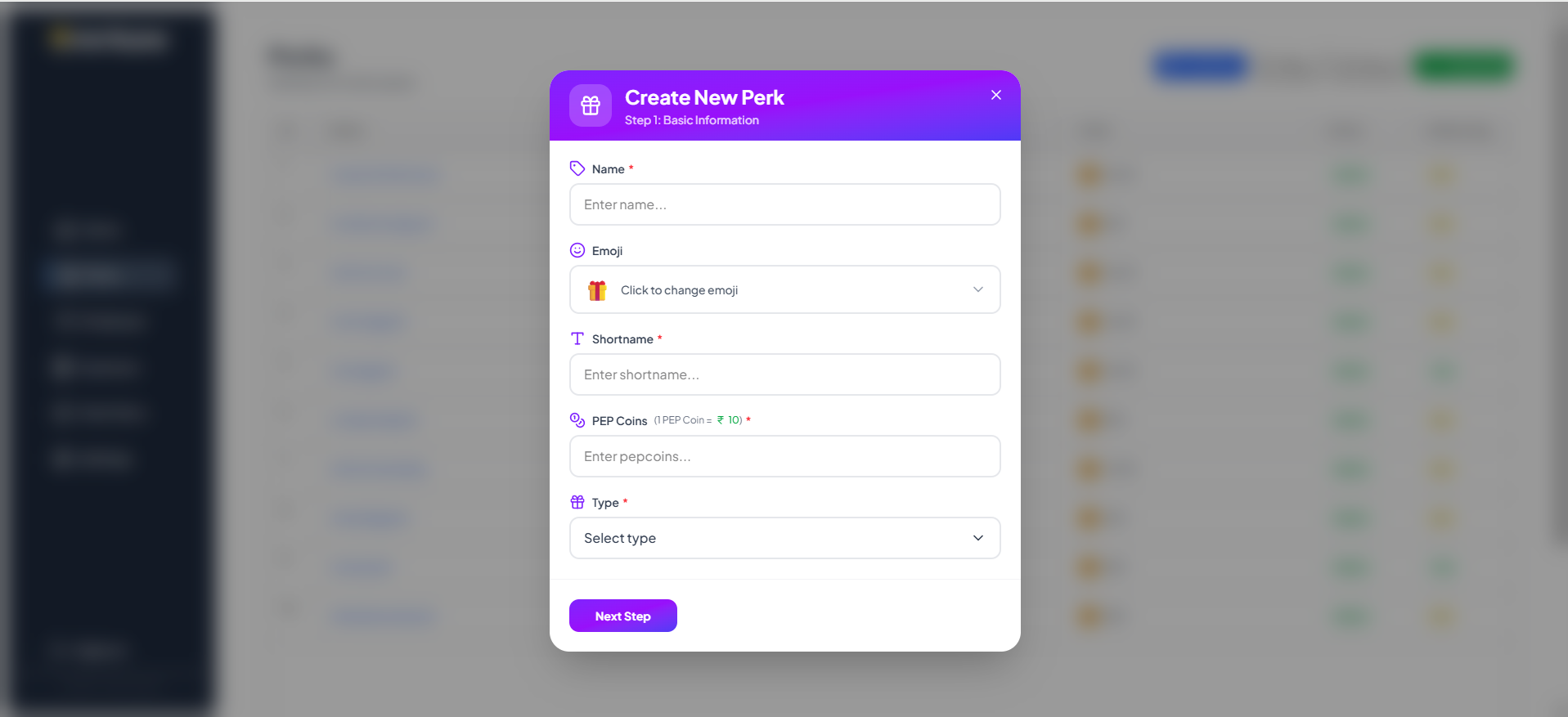
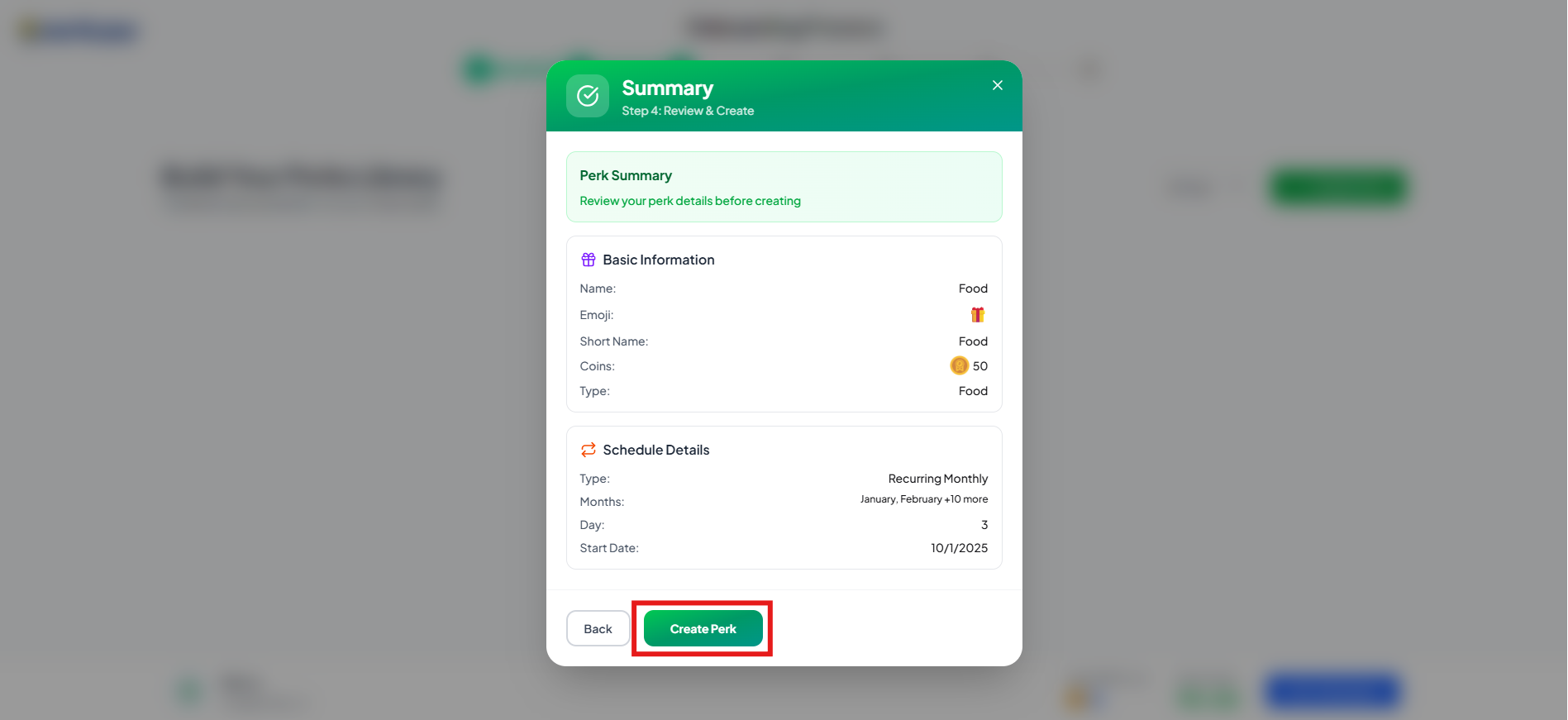
- Name: Full name of the perk (e.g., "Monthly Food Allowance")
- Emoji: Choose an icon (e.g., 🍔, ⛽, 🎂)
- Short Name: Abbreviated name (e.g., "Food")
- Coins: PEP Coin value (e.g., 100)
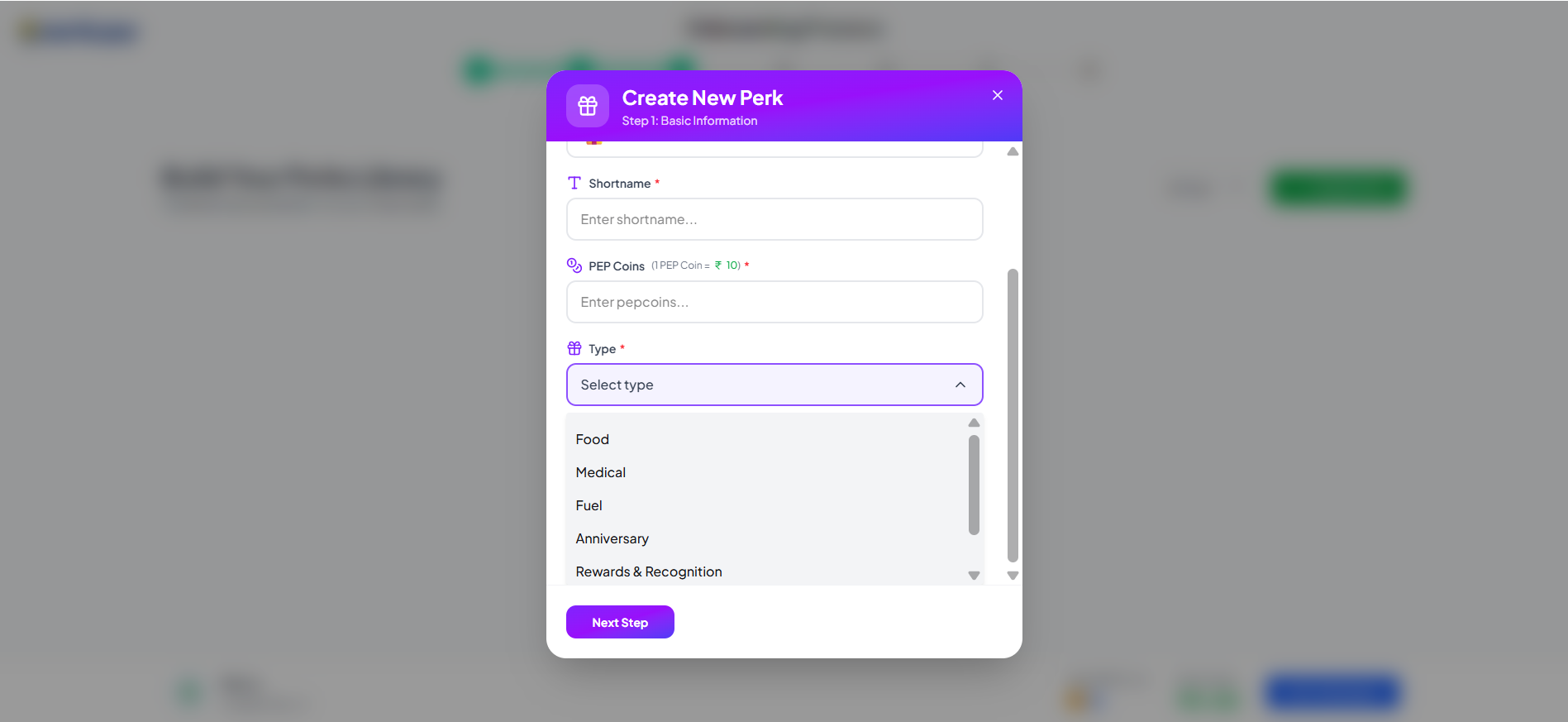
- Type: Category (Food, Medical, Fuel, Anniversary, etc.)
Step 4: Set Up Schedule
Choose how and when the perk will be assigned.
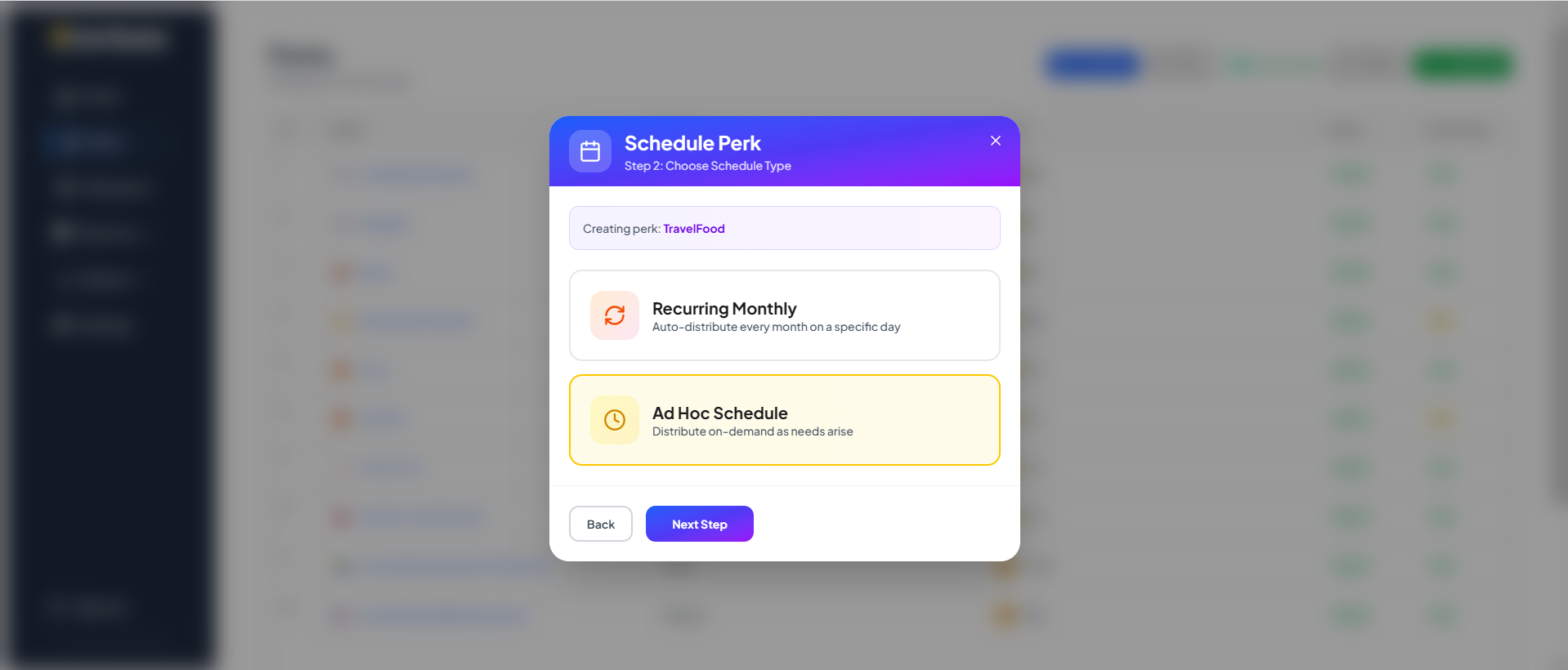
Ad Hoc Schedule
Distribute on-demand as needs arise.
One-Time
Best for event-based perks like anniversaries or fixed bonuses.
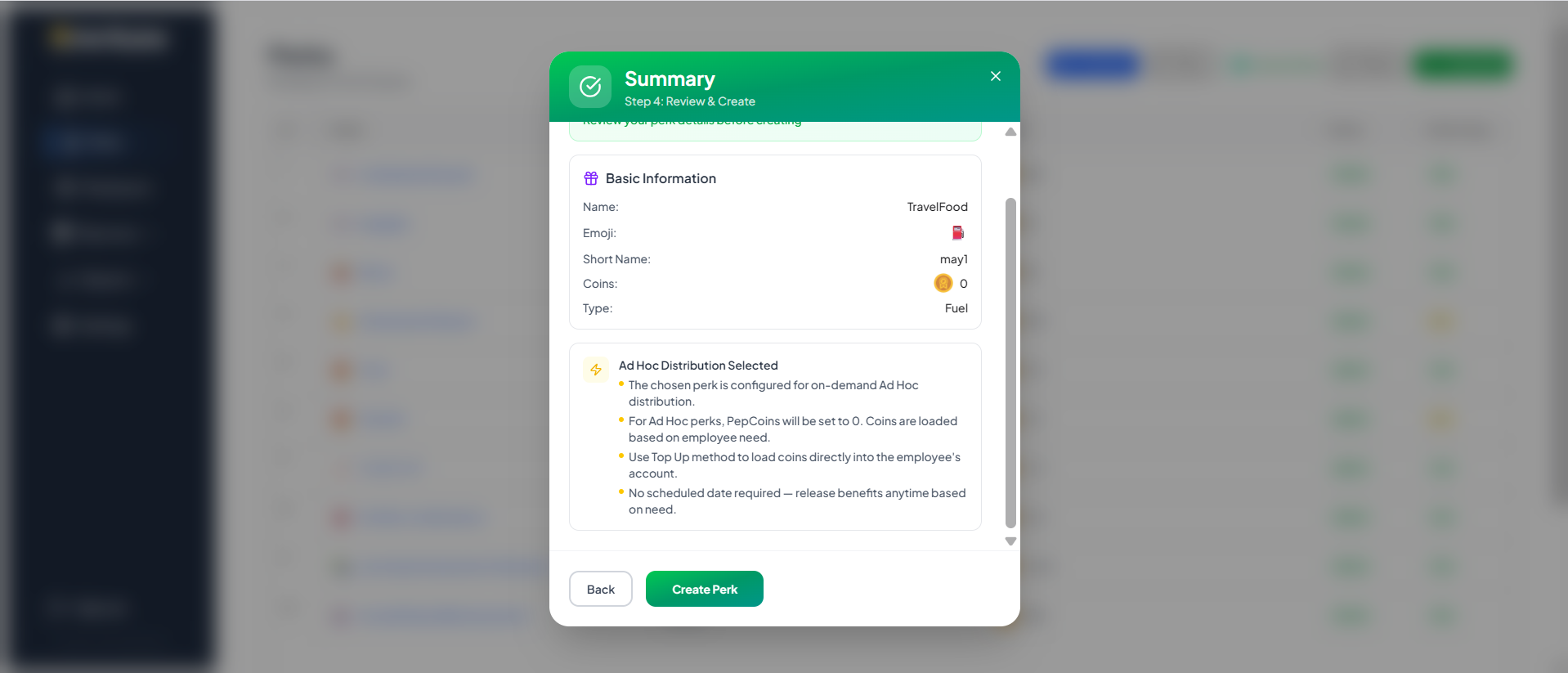
Configuring Ad Hoc Schedule
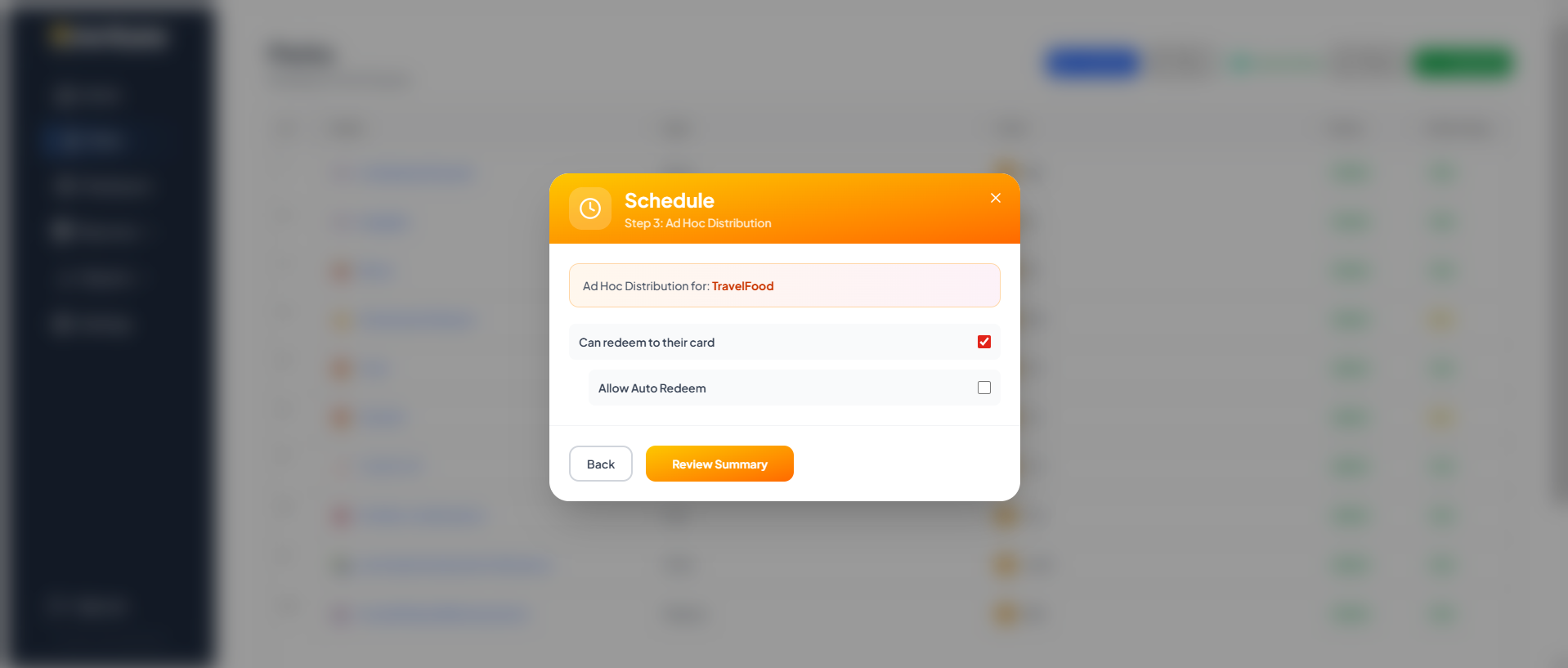
Best for on-demand distributions (travel expenses, off-cycle bonuses).
- Initial Coins Set to 0: Because coins are distributed on-demand, the initial perk coin value is
0. - Top Up Method: Coins are loaded directly as needed.
- No Scheduled Date: Benefits are released manually.
Configuring Rewards & Recognition
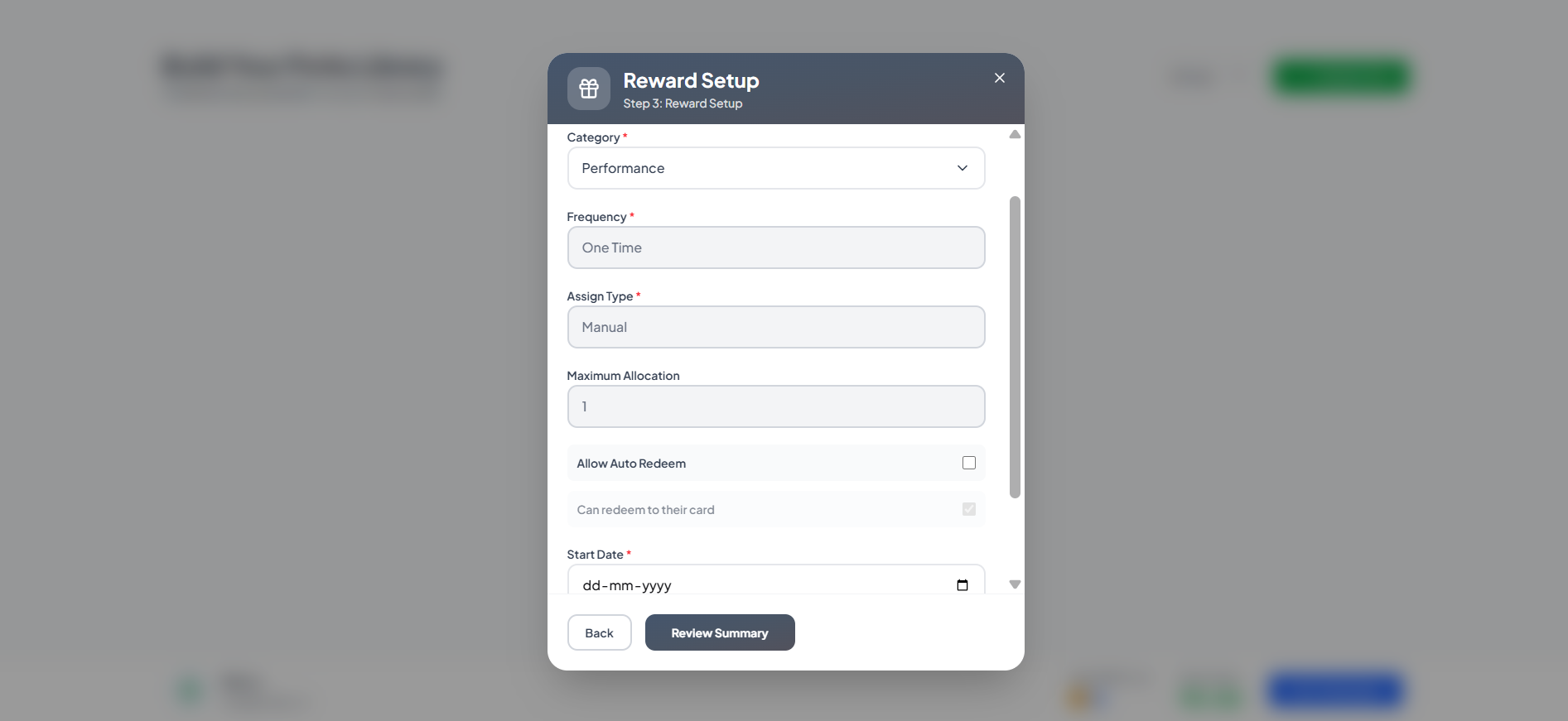
Best for performance rewards or spot bonuses.
- Category: Type of reward.
- Assign Type: Manual (you decide who gets it).
- Maximum Allocation: Limit on how many times this can be given.
Configuring Other Perks (Marketplace)
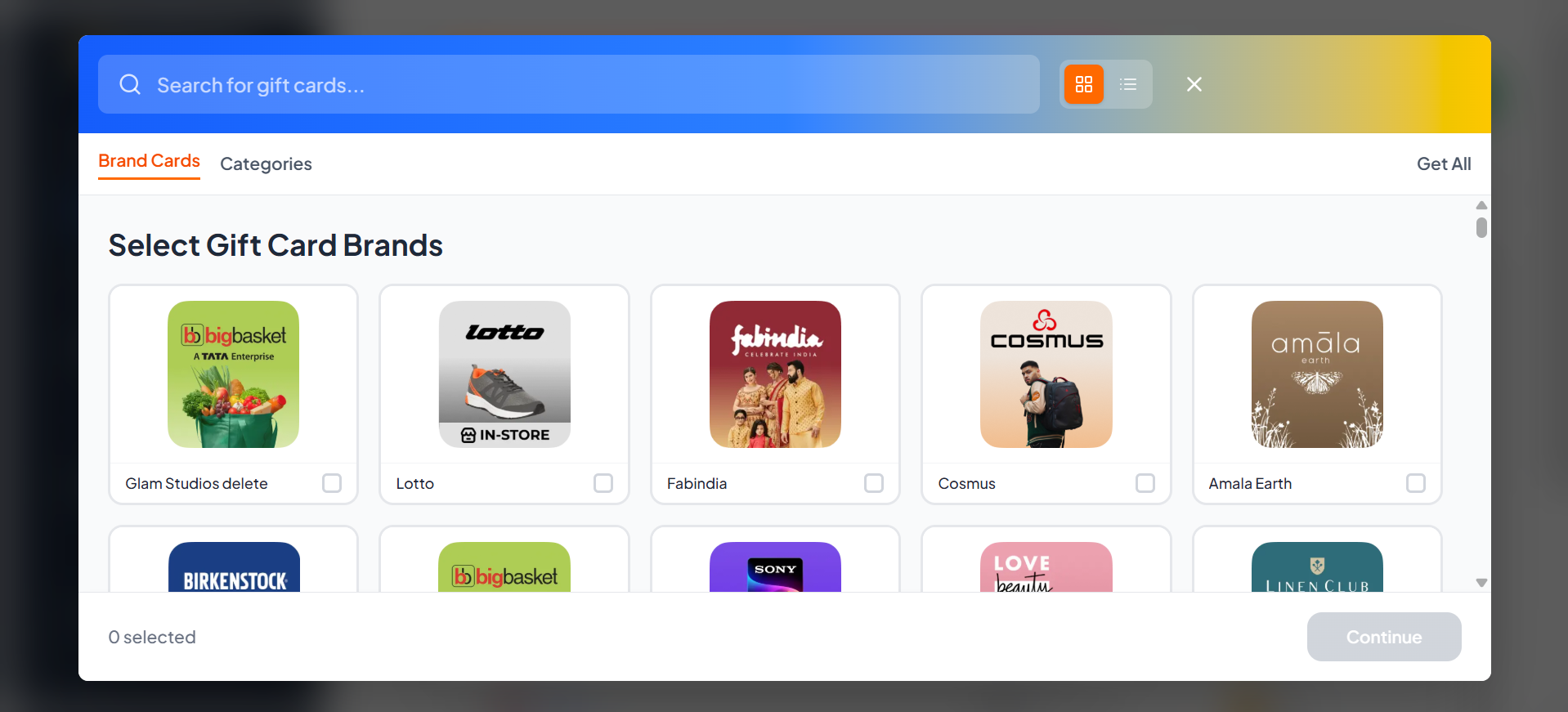
Best for offering flexible benefits where employees can choose from a marketplace of gift cards.
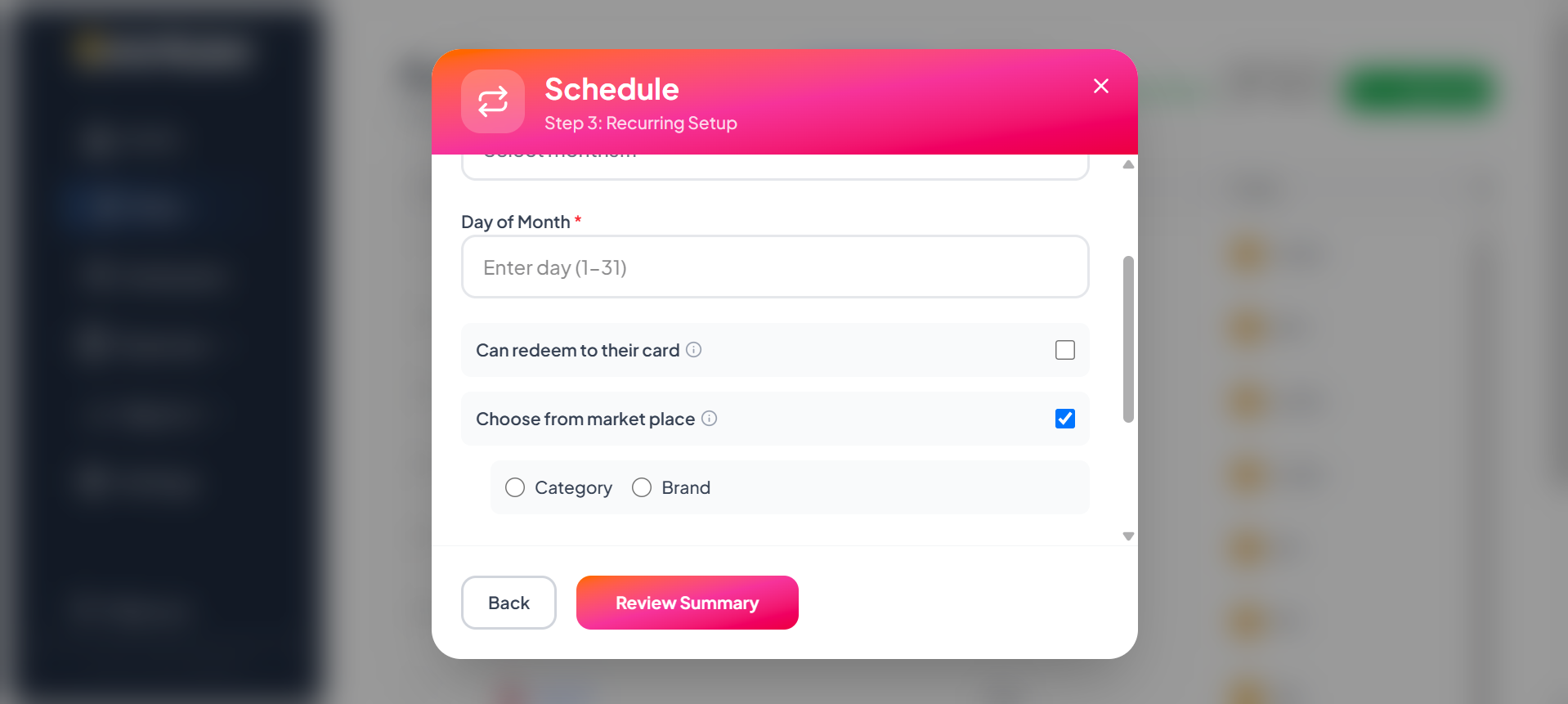
- Can redeem to their card: Allows employees to redeem the perk value directly to their RuPay card.
- Choose from market place: Enables the gift card marketplace for this perk.
- Category: Restricts the available gift cards to specific categories.
- Brand: Restricts the available gift cards to specific brands. By selecting Brand, you can explicitly search and select the exact gift card brands employees are allowed to choose.
Step 5: Review & Create
Review all details on the final screen, then click Create Perk. Your new perk will appear in the Perks list.
How to Assign Perks
You can assign perks from two different views:
Method 1: From the Perk
Go to Perks → Select a perk → Assigned Employees tab → Assign Employees.
Method 2: From the Employee
Go to Employees → Select employee → Perks tab → Manage Perks.
Assigning a perk only links the perk to the selected employees. It does not allocate any PEP Coins immediately.
To credit coins to employees, use Assign & Allocate, or allow the scheduled allocation to run automatically based on the perk's allocation schedule.
How to Top Up Perk Balance
If a user needs additional perks coins (e.g., they have exhausted their limit), employers can manually "Top Up" balance.
Note: This option is available only if the perk is already assigned to the user.
- Go to the perk's Assigned Employees tab
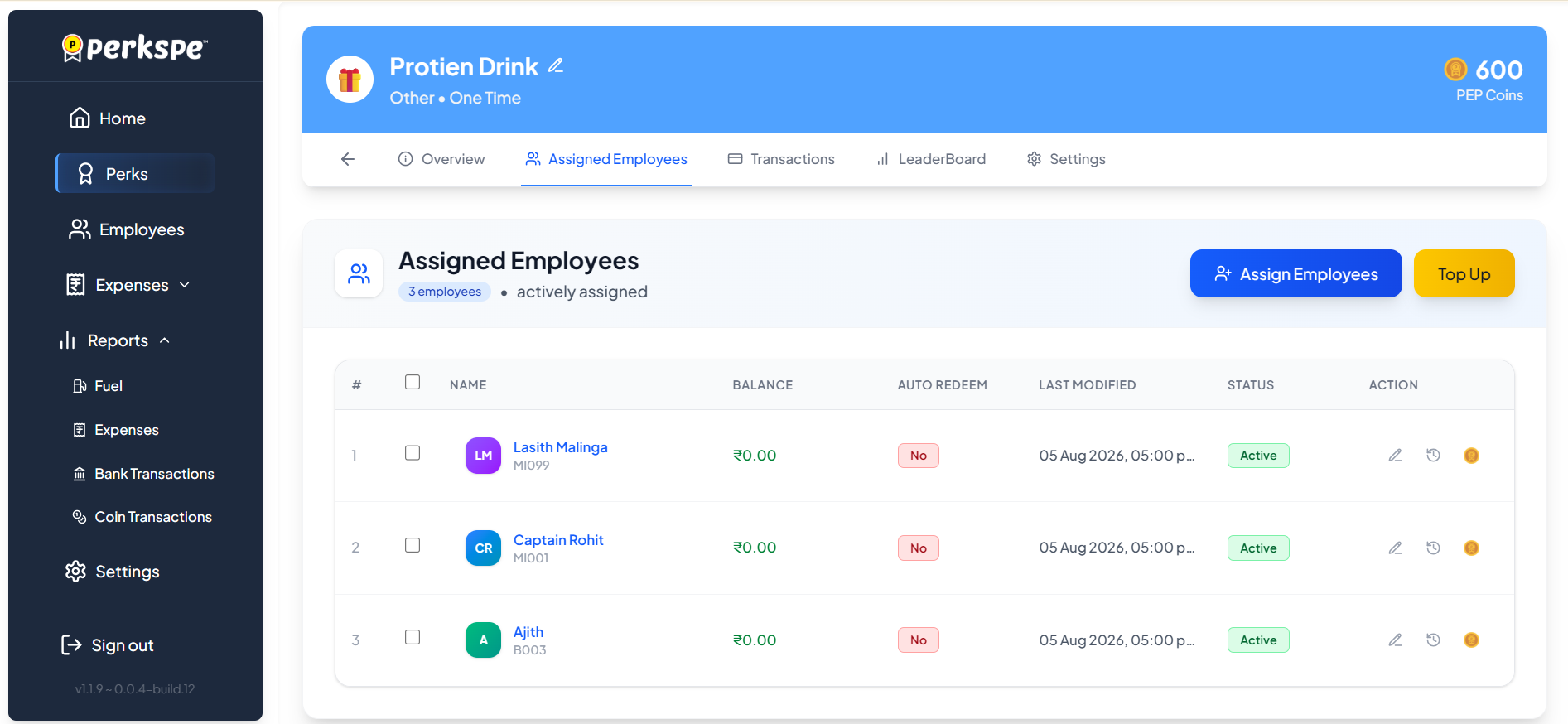
- Click the Top Up button
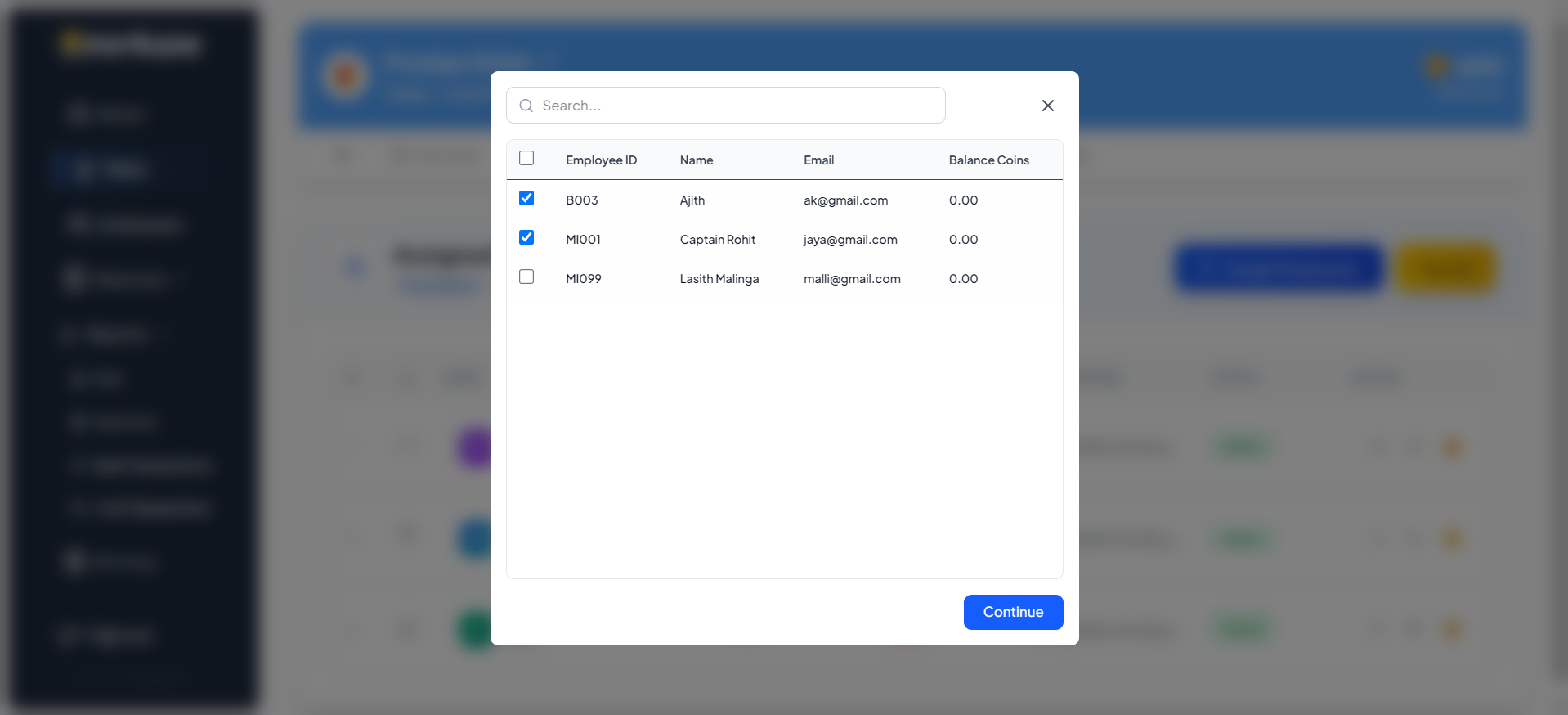
- Select the employees you want to top up
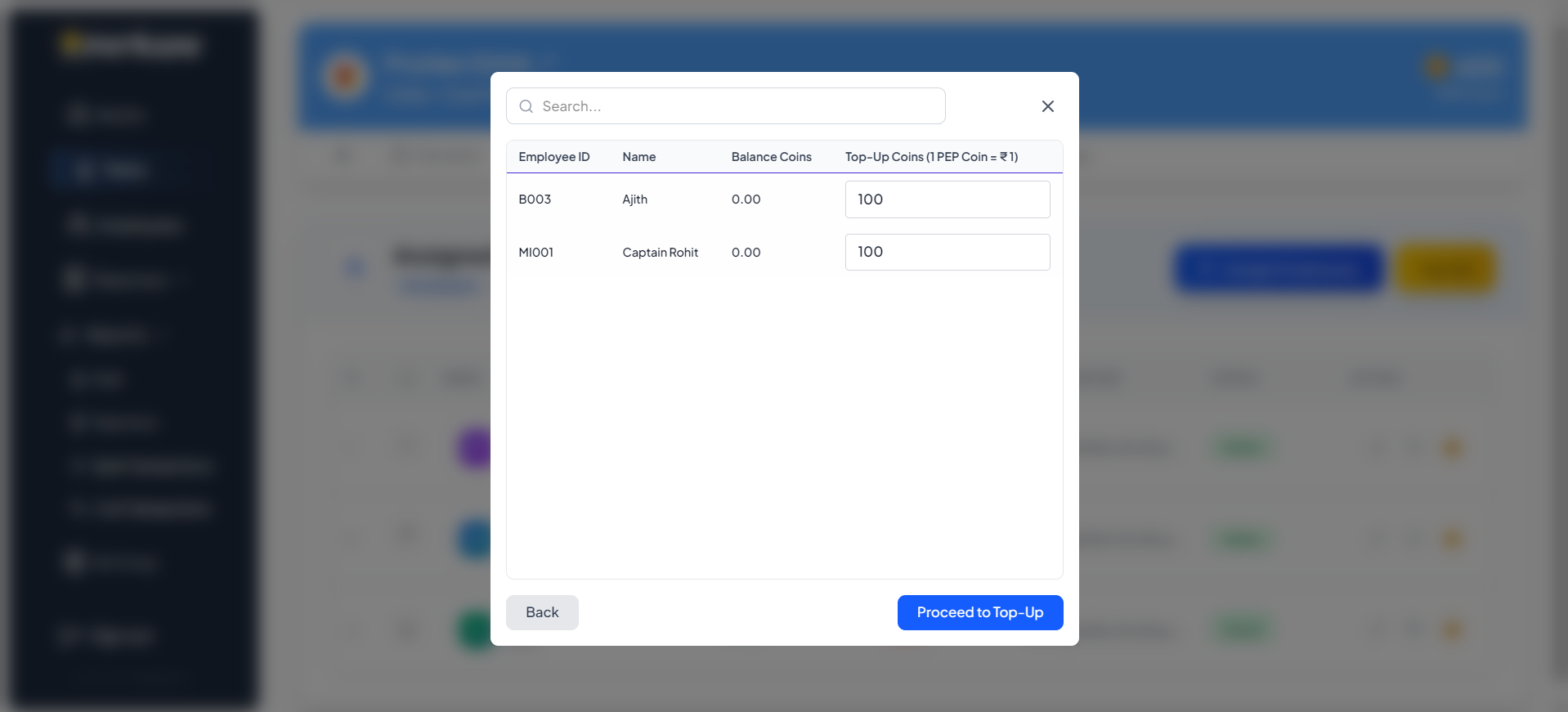
- Enter the amount of coins to add
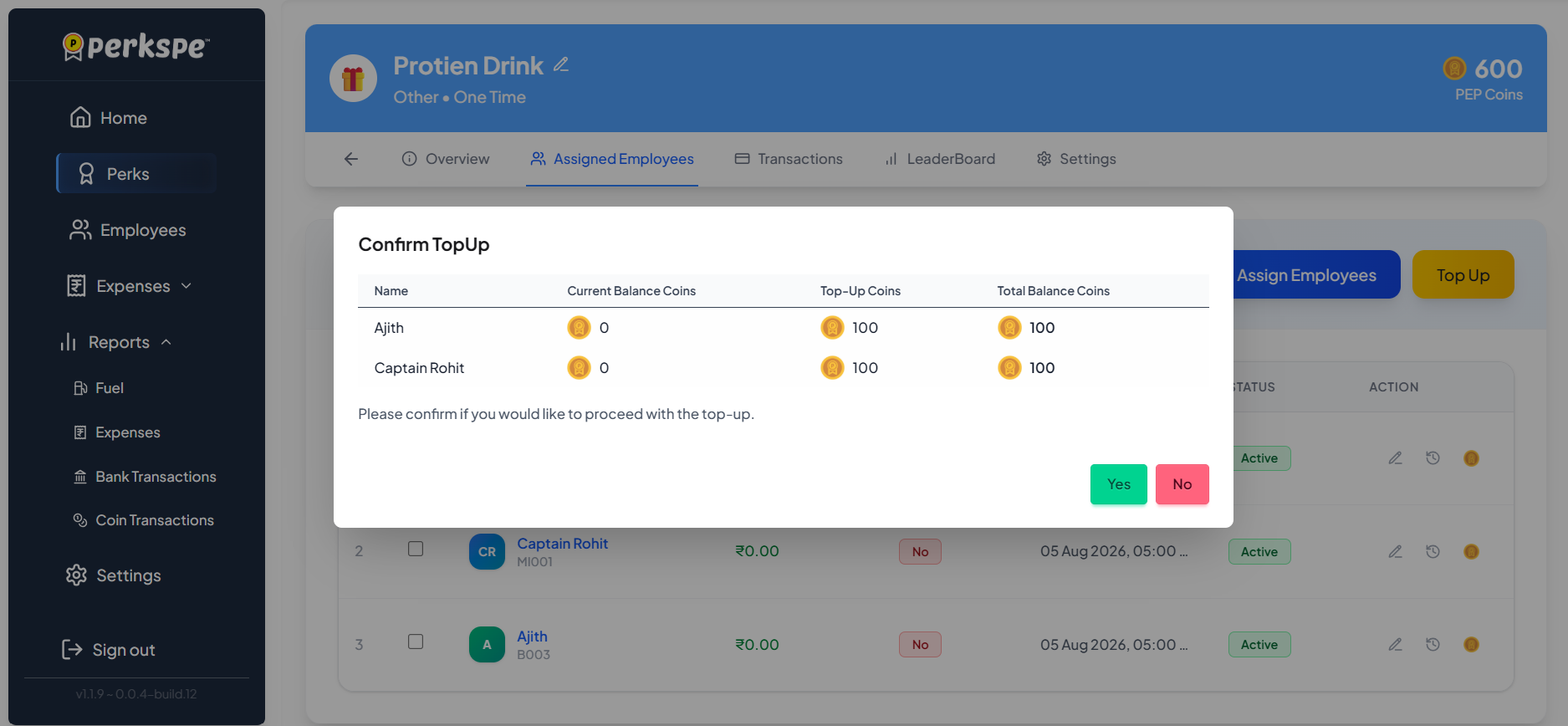
- Confirm the transaction
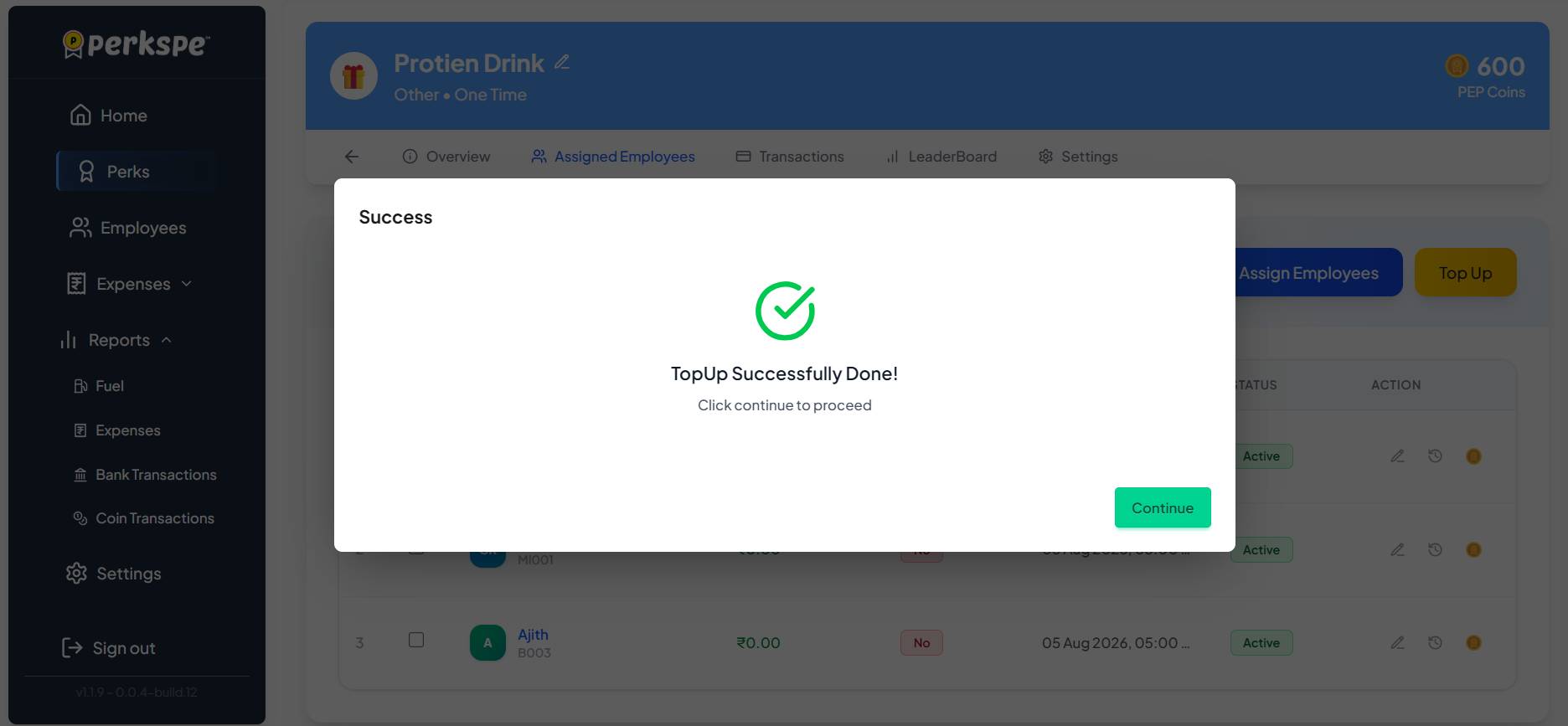
Tracking Perk Transactions
Monitor how PEP Coins are loaded and redeemed for each perk by navigating to the Transactions tab.
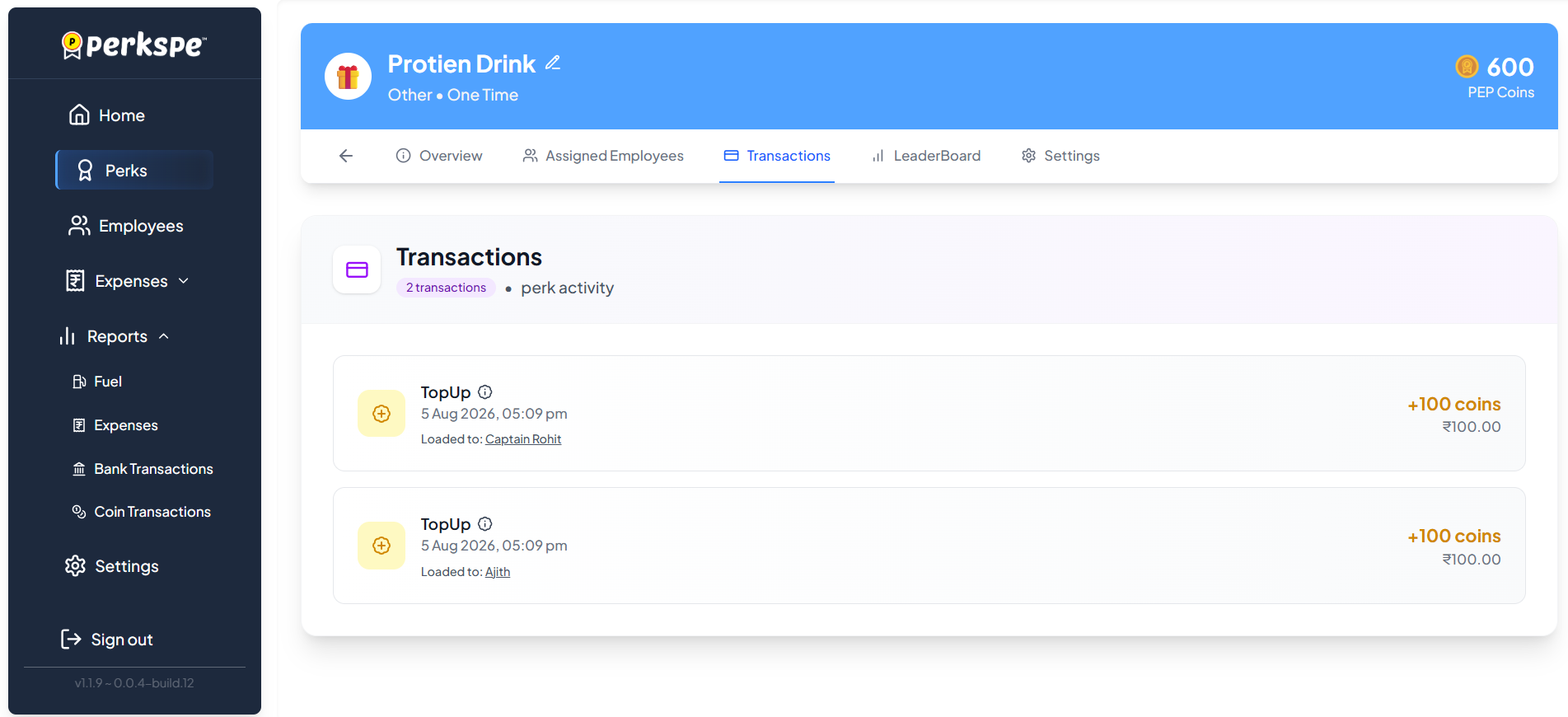
Click See more to view the full audit trail, including dates, exact coin amounts, and remaining balances. You can filter by employee, date, or transaction type.